How to Enable Dark Mode on Any Website in Chrome
Turn every website dark in Chrome: the one-click setup, what happens to sites that are already dark, what happens to your photos, and the pages no extension is allowed to touch.
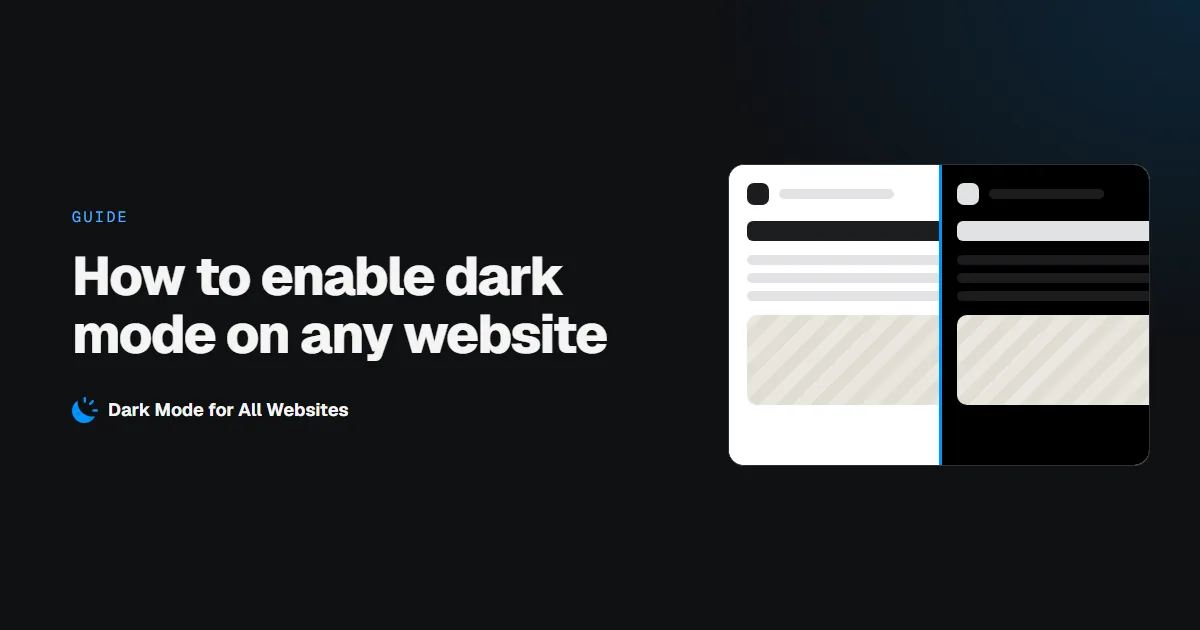
Your operating system is dark, your editor is dark, your phone is dark, and then a website hits you with a wall of white. GoDarkMode is a free Chrome extension that gives every site a dark theme, including the sites that never built one.
This guide covers the setup, how to turn it off, what happens to sites that are already dark, and the handful of pages it cannot change.
How to enable dark mode on any website in Chrome
- Install GoDarkMode from the Chrome Web Store and click Add to Chrome.
- That's it. Dark mode is on for every site straight away.
- Optional: pin the extension so the moon button is always one click away. Click the puzzle-piece icon in Chrome's toolbar, then the pin next to GoDarkMode.
There's no account, no sign-up and nothing to configure.
No white flash
Most dark-mode extensions inject their styles with JavaScript, which can only run after the browser has already painted the page, so you see a flash of white first. This one registers its stylesheet to run before the first paint, so pages arrive dark.
Turning it off
There is one control: the button in the toolbar. Click it and every tab goes back to normal. Click it again and they all go dark. There is no per-site memory, no keyboard shortcut and no settings panel, because there is no popup at all.
If the button is not visible, click the puzzle-piece icon in Chrome's toolbar and pin GoDarkMode. Pinning is only so the switch is within reach; the theme is already on either way.
Sites that already have a dark theme
Inverting a site that is already dark just turns it bright again. So before darkening a page, the extension samples the colour actually painted behind several points of it and skips pages that are already dark.
This is a measurement, not a setting, and it runs in four passes. It reads what the page declares through color-scheme; it samples a grid of points across the viewport to see what colour actually lands; when a page comes out half and half it works out whether the dark is the backdrop or bands sitting on it; and when a page paints no background at all, it falls back to the colour of the text.
Google's results page is the reason the grid exists: it declares no colour scheme, and 25 of 25 sampled points come back dark. The Verge paints its dark on elements rather than the backdrop. Both are left alone.
Photos, video and background images
A plain page-wide invert would turn every photo into a negative. To avoid that, images, video, canvas, embeds and frames are flipped back to their real colours.
Photos set through CSS backgrounds (hero banners, article headers, card thumbnails) are the case most invert-based extensions miss, because those elements aren't images as far as the page is concerned. The large ones that carry no text are found and restored too.
Pictures inside web components were a separate problem. A stylesheet on the document does not reach into a shadow root, so every image in a component stayed inverted while the filter above it still applied. The stylesheet is now adopted into those roots as well.
Why the background is not pure black
Inverting a white page lands it on pure black, and pure black with white text is harsher than any hand-built dark theme goes. So the filter pairs contrast and brightness to lift the floor to #121212 while leaving white exactly white: the change is strongest at the black end and nothing at the white end.
That also means there is nothing to tune. Earlier versions put appearance sliders in a popup; 0.0.3 has neither the popup nor the sliders.
Dark headers on a light page
A page with a white body and a dark header, sidebar or footer is the common awkward case. A plain inversion turns those dark bands into pale slabs lying across the page. They are now detected and kept dark. Measured as the share of the page left as light grey:
| Page | Before | After |
|---|---|---|
| python.org | 62% | 3.4% |
| w3schools.com | 64% | 3.5% |
| pypi.org | 54% | 5% |
| postgresql.org | 34% | 5% |
Pages it can't change
Chrome doesn't let any extension modify its own pages. chrome:// pages, the Chrome Web Store and other browser add-on stores always stay light. That's a Chrome security rule rather than a limitation of the extension.
Is it safe?
It collects nothing. There are no accounts, no analytics and no network requests of any kind. The extension never contacts a server, so there is nowhere for your data to go.
It asks for two permissions plus site access: scripting and storage, and permission to run on the pages you visit, which is the only way to restyle them. Because of that, Chrome's install prompt says it can "read and change your data on all websites". Full detail is in the privacy policy.
How to remove it
- Right-click the moon icon in your toolbar.
- Choose Remove from Chrome, then confirm.
Or open chrome://extensions, find GoDarkMode and click Remove. Your settings go with it.
Frequently asked questions
Does it work on a Chromebook? Yes. Chromebooks run Google Chrome, so you can install it from the Chrome Web Store. On a school or work Chromebook, your administrator decides which extensions are allowed.
Does it cost anything? No. It's free, with no account, no ads and no paid tier.
Does it follow me to another computer? No. The only thing stored is whether the switch is on, and it is kept in your browser profile on that device.
Related guides
- Why dark mode extensions flash white — what causes that split second of white, and how it is avoided
- Dark mode and OLED screens — what a dark background saves, and why it is not pure black
- Is a dark mode extension safe? — how to check permissions before installing
- Dark mode extension not working? — fixes for pages that stay white
- Chromebook dark mode for websites — what the ChromeOS dark theme covers, and what a school Chromebook allows
Get started
Add GoDarkMode to Chrome, then open any bright site you like.