Is a Dark Mode Extension Safe? How to Check Before You Install
Dark mode extensions need permission to change every page you visit, which is exactly what a malicious one would ask for. Here is how to tell them apart in about two minutes.
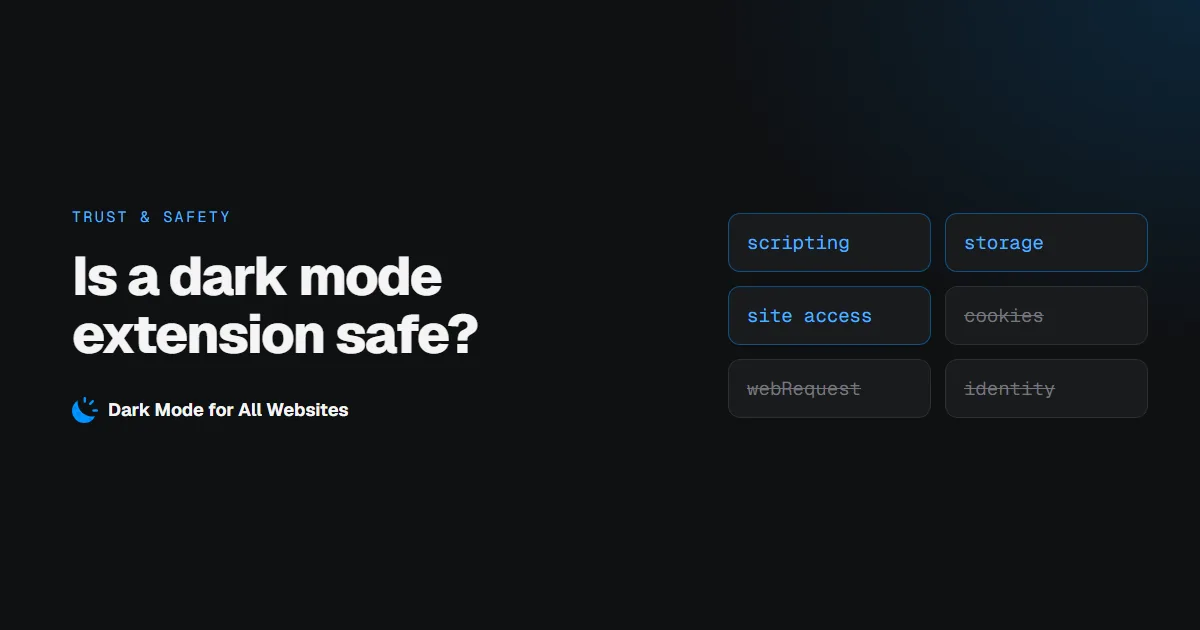
Short answer: a dark mode extension is only as safe as the permissions it asks for and what it does with them. Every extension that darkens web pages needs access to the pages you visit, because restyling a page is only possible from inside it. That is also the permission a malicious extension wants. The difference is what happens next: a safe one applies a stylesheet and stops there, while a dangerous one reads what you type, tracks your browsing, or quietly inserts affiliate links.
Here is how to check any of them, including ours, in about two minutes.
Why dark mode extensions need scary-sounding permissions
When you install one, Chrome warns that it can "read and change all your data on all websites". That warning is accurate but blunt: Chrome cannot tell the difference between an extension that restyles a page and one that scrapes it. Both need to run on the page.
So "it asked for site access" is not a red flag by itself. What matters is whether it asks for more than that.
| Permission | Needed to darken pages? | What to think |
|---|---|---|
| Site access / host permissions | Yes | Unavoidable for any dark mode extension |
scripting |
Yes | Used to inject or register the stylesheet |
storage |
Yes | Remembers your settings |
tabs |
Rarely | Can expose URLs and titles of all open tabs |
webRequest / declarativeNetRequest |
No | Can observe or modify network traffic |
cookies |
No | No reason for a theming tool |
identity |
No | Ties your browsing to an account |
management |
No | Can see or disable your other extensions |
If a dark mode extension asks for cookies, network access or your identity, close the tab.
The five checks worth doing
1. Read the permission list before you click Add
On the store listing, open Privacy practices. It lists every permission, and the developer's own disclosure of what data they collect. A theming extension that declares "personally identifiable information", "web history" or "user activity" is telling you it collects data it does not need.
2. Check what the developer says they collect
Google requires developers to disclose data collection and to link a privacy policy. If there is no policy link, or the policy is a copy-paste template that never mentions the extension by name, treat that as unanswered.
3. Look at the update date
An extension last updated three years ago is running on old assumptions about Chrome's security model, and nobody is watching it. Check the Updated date in the listing's Details panel.
4. Read the one-star reviews, not the five-star ones
Sort reviews by lowest rating. Complaints about ads appearing, search results being redirected, or pages behaving oddly are the ones that matter. Praise tells you nothing about safety.
5. Watch for a change of owner
Small, popular extensions get bought, and the new owner sometimes monetises the user base. A sudden change in the developer name, a jump in permissions after an update, or a new "sponsored results" feature are all worth uninstalling over.
How our extension answers these checks
We think you should apply the list above to us too, so here are the answers.
| Check | GoDarkMode |
|---|---|
| Permissions | scripting, storage, and access to the pages you open. Nothing else |
| Network requests | None. The extension never contacts any server, ours included |
| Accounts | None. There is nothing to sign into |
| Analytics | None |
| What is stored | Whether the switch is on, in your own browser profile on that device |
| Data sold or shared | Nothing is collected, so there is nothing to sell |
You can verify the "no network requests" claim yourself: open any page, press F12, go to the Network tab, and toggle dark mode. Nothing from the extension appears, because there is nothing to appear.
Our full privacy policy is one page, in plain language.
What a dark mode extension can never do
Chrome does not let any extension run on its own pages. chrome:// pages, the Chrome Web Store and other browser add-on stores stay light no matter what you install. That is a browser security rule, and it is also why an extension promising to darken "absolutely everything with no exceptions" is overpromising.
If you want to double-check an extension yourself
- See its permissions after install:
chrome://extensions, then Details on the extension. - Limit it to specific sites: on that same page, set Site access to "On specific sites". Our extension works fine that way, though it can only darken the sites you list.
- Watch what it does: open DevTools → Network, and use the page normally.
- Remove it: right-click the toolbar icon → Remove from Chrome.
The short version
A dark mode extension asking for site access is normal. One asking for cookies, network control or your identity is not. Check the permissions, the privacy disclosure, the update date and the one-star reviews, and you will filter out almost everything risky in a couple of minutes.
If you want one that keeps the list short, GoDarkMode uses two permissions plus site access, makes no network requests, and collects nothing. If it stops working on a site, the troubleshooting guide covers the usual causes.