Chromebook Dark Mode: How to Make Websites Dark Too
The dark theme on a Chromebook darkens ChromeOS and Chrome, and leaves most websites white. Here is what each setting covers, how to darken the pages as well, and what to do on a school Chromebook.
The dark theme on a Chromebook darkens ChromeOS, not the web. The shelf, the launcher, Quick Settings, the Files app and Chrome's own tabs and menus go dark. A website only follows if its authors built a dark version that listens to the system setting. Every other site stays as white as it was, which is why a Chromebook in dark mode can still light up the room the moment you open a page.
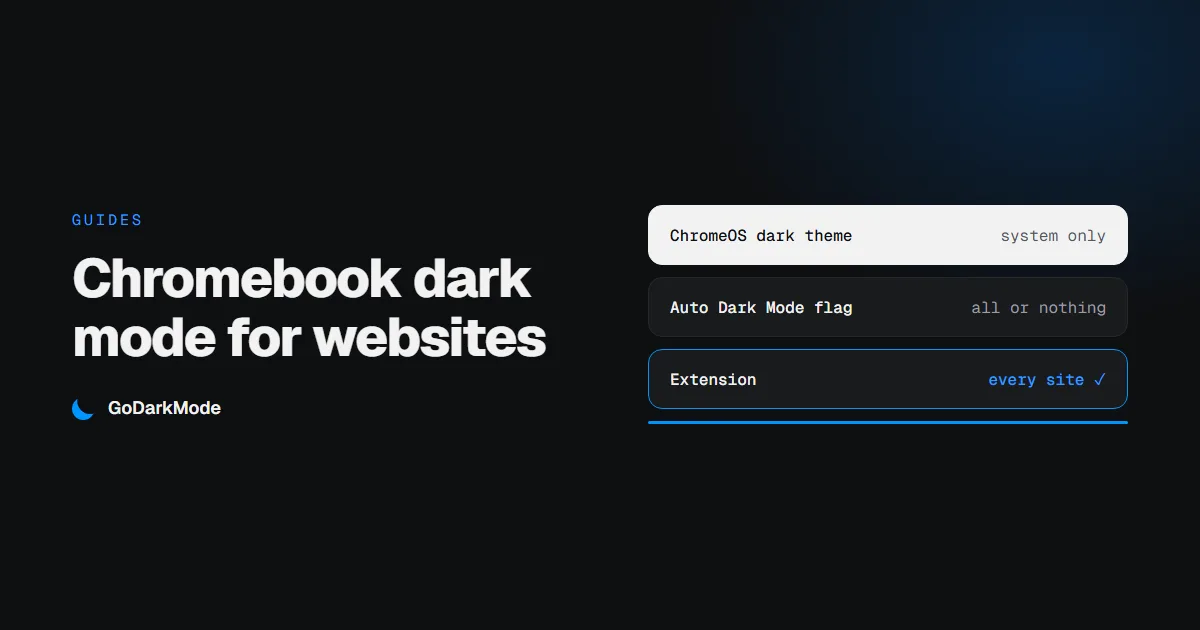
There are three things you can switch on, and each covers a different part of the screen.
| ChromeOS and Chrome | Sites with their own dark theme | Every other site | |
|---|---|---|---|
| ChromeOS dark theme | Dark | Dark, if the site follows the system setting | Stays light |
| Auto Dark Mode for Web Contents (flag) | No change | Processed anyway | Dark |
| A dark mode extension | No change | Depends on the extension | Dark |
1. Turn on the ChromeOS dark theme
This is the setting to start with, and it needs nothing installed.
- Right-click the desktop and choose Set wallpaper & style.
- Select Theme.
- Choose Dark.
Auto is the third option. It switches between light and dark on a schedule instead of staying dark all day.
What changes: the shelf, the launcher, Quick Settings, system apps such as Files and Settings, and Chrome's tab strip, address bar and menus.
What changes on the web: only the sites that ship their own dark theme and follow the system setting. Those switch along with the Chromebook.
What does not change: every other website. That is correct behaviour and not a fault. ChromeOS has no business repainting pages their authors designed. It is simply not what you wanted if you switched the theme at midnight hoping the web would stop glowing.
2. The Auto Dark Mode flag
A Chromebook runs the same Chrome as a Windows or Mac laptop, so the same experimental switch is there.
- Go to
chrome://flags/#enable-force-dark. - Set Auto Dark Mode for Web Contents to Enabled.
- Restart when Chrome asks.
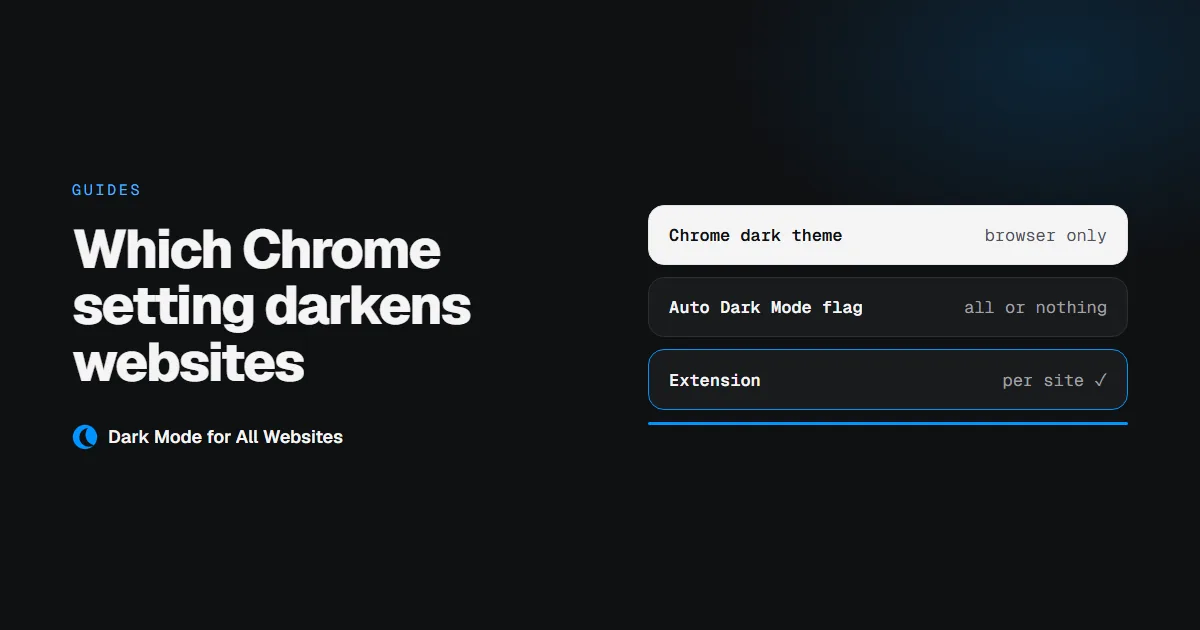
Pages are now darkened by a filter Chrome applies to their colours. The limits are the same as on any other computer: it is all or nothing, it processes sites that were already dark, and a flag can be changed or removed in any release. The full comparison is in which Chrome setting darkens websites.
3. A dark mode extension
Chromebooks install extensions from the Chrome Web Store exactly as Chrome on a laptop does, so this works the same way.
- Open GoDarkMode on the Chrome Web Store and click Add to Chrome.
- Dark mode is on for every site straight away, including the tabs you already had open.
- The button in the toolbar turns it off, and back on, for every tab at once.
The difference from the flag is that an extension can look at a page before touching it. GoDarkMode applies before the page paints, so there is no white flash. It measures what a page actually paints and leaves the ones that are already dark alone. It flips photos and video back to their real colours. It is free and never contacts a server.
Used with the ChromeOS dark theme, the two cover the whole screen: the theme darkens the system and Chrome, and the extension darkens the pages the theme does not reach.
On a school or work Chromebook
A managed Chromebook belongs to an organisation, and its administrator decides which extensions can be installed. Google's admin settings give them three choices:
| The administrator's setting | What you can install |
|---|---|
| Allow everything except a blocklist | Any extension that is not on the list |
| Block everything except an allowlist | Only the extensions they have approved |
| Block everything, with requests | Approved extensions, plus a way to ask for one you need |
If Add to Chrome is missing or the install is refused, that is the policy doing its job, and nothing is wrong with the Chromebook or the extension.
What to do: ask the IT administrator, or a teacher who can pass it on, to allow the extension. Send them its Chrome Web Store page and its privacy policy. It collects nothing and never contacts a server, which are the two questions an administrator will ask first.
There is no way around a managed policy, and a page that promises one is not doing you a favour. The dark theme in step 1 is a ChromeOS setting and not an extension, so the extension policy does not apply to it.
What stays light
- Chrome's own pages. Chrome does not let any extension touch
chrome://pages or the Chrome Web Store. The ChromeOS dark theme is what darkens Chrome's settings pages. - Android and Linux apps. They are not web pages, so no Chrome extension reaches them. They have their own appearance settings.
- PDFs. Chrome renders these in its built-in viewer and not as a web page.
If a normal website stays white with the extension installed, the troubleshooting guide covers the usual causes.
Which one should you use
- You want the Chromebook itself dark and can live with bright pages: the ChromeOS dark theme. Nothing else needed.
- You want dark pages too, on your own Chromebook: the dark theme plus an extension.
- You are on a school or work Chromebook: the dark theme now, and a request to your administrator for the extension.
Frequently asked
Is Night Light the same as dark mode? No. Night Light warms the colours of the whole screen in the evening and leaves white backgrounds in place. Dark mode changes the backgrounds themselves. The two can be on together.
Why did some websites turn dark and others not? The ones that turned dark have their own dark theme and follow the system setting. The rest never built one, or keep their theme behind a setting of their own, so ChromeOS leaves them alone.
Does dark mode save battery on a Chromebook? Only on an OLED screen, where dark pixels draw very little. Most Chromebooks have an LCD, where the backlight stays on regardless and the saving is close to zero. More on that in true black and OLED.