Chrome Dark Mode: Which Setting Actually Darkens Websites
Chrome has a dark theme, a hidden force-dark flag, and a store full of extensions. They do three different jobs, and only two of them touch the page you are reading.
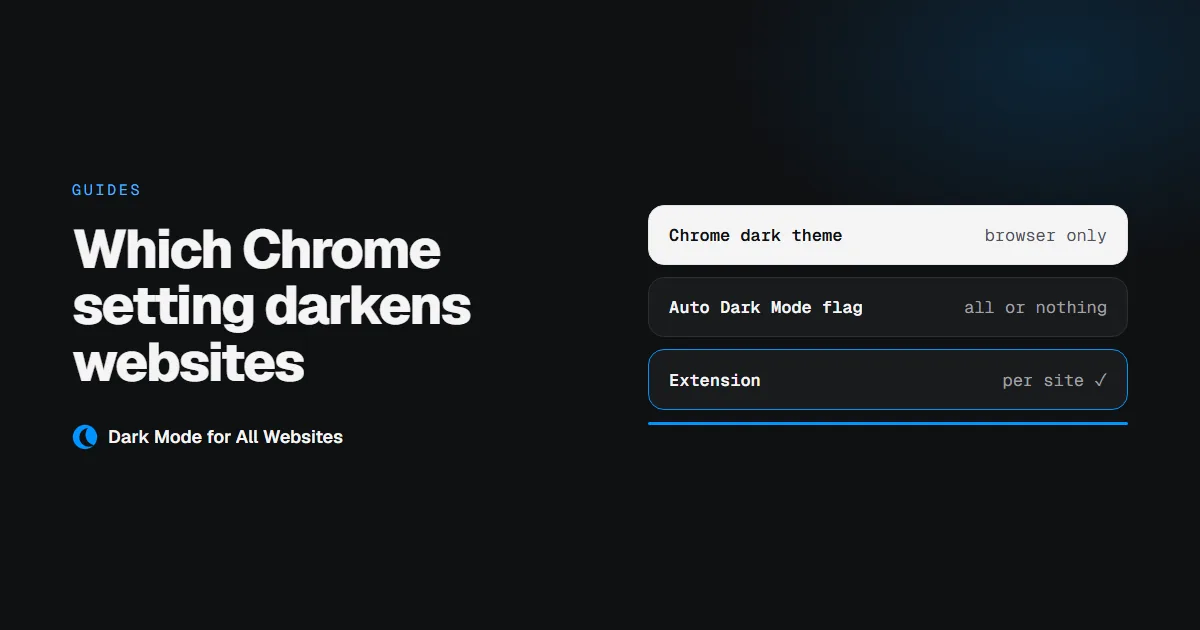
Chrome's own dark mode setting does not darken websites. It darkens Chrome. Tabs, menus, the settings pages and the new tab page go dark; every site you open stays exactly as bright as it was. That single fact is behind most of the confusion, because three separate features share the name "Chrome dark mode" and they do three different jobs.
Here is what each one changes.
| Darkens the browser | Darkens web pages | Leaves already-dark sites alone | ||
|---|---|---|---|---|
| Chrome's dark theme | Yes | No | — | |
| Auto Dark Mode for Web Contents (flag) | No | Yes | No | |
| A dark mode extension | No | Yes | Depends on the extension |
1. Chrome's dark theme: the browser only
This is the setting most people find first.
- Open Settings → Appearance.
- Set Mode to Dark.
On Windows and macOS, Chrome also follows the system theme if you leave the mode on Device. Switching your OS to dark switches Chrome with it.
What changes: the tab strip, the address bar, menus, the downloads bar, the settings pages, and Chrome's own new tab page.
What does not change: every website. Open a news site or a wiki right after and it will be just as white as before. This is correct behaviour, not a bug. The browser has no business repainting pages that authors designed. It is simply not what you wanted if you switched the setting at midnight hoping the web would stop glowing.
2. Auto Dark Mode for Web Contents: the hidden flag
Chrome does have a built-in way to darken pages, but it is experimental and switched off by default.
- Go to
chrome://flags/#enable-force-dark. - Set Auto Dark Mode for Web Contents to Enabled.
- Relaunch Chrome.
Now pages are darkened too. Chrome applies an algorithmic filter to the page's colours: light backgrounds become dark, text is adjusted for contrast.
The limits matter, though, and they are the reason most people turn it back off within a week:
- It is all or nothing. A site that looks wrong stays wrong until you go back into flags and relaunch the browser.
- It does not know which sites are already dark. A site that ships a careful dark theme gets processed anyway, which is how a dark page ends up looking washed out or bright.
- Flags are not a supported feature. They exist for testing and can be changed or removed in any release, with no notice and no migration.
- It applies late in some cases, so you can still see a bright page for a moment before it settles.
If you want to try dark pages without installing anything, this is the way to do it. Just know that it is a switch marked "here be dragons", and treat it as one.
3. A dark mode extension
An extension sits where the flag cannot: it can look at what the page actually paints before touching it, and decide not to.
That is where the real differences between extensions live, and it is worth knowing what to compare before you install one:
- Does it apply before the first paint? An extension that injects styles with JavaScript can only run after the browser has painted, which is the white flash you see on every page load. Registering a stylesheet at
document_startremoves it. - Does it detect sites that already have a dark theme? Inverting a dark site turns it bright. The only reliable test is sampling the colour the page actually paints, rather than trusting a list of domains.
- Does it keep photos as photos? A page-wide inversion turns every image into a negative. Images, video, canvas and frames have to be flipped back, including photos set as CSS backgrounds, which many extensions miss.
- How much does it ask for? A dark mode extension needs to restyle the pages you visit and to remember your settings. Anything beyond that deserves a question.
- Does it phone home? There is no technical reason for a dark mode extension to make a single network request.
Which one should you use
- You want Chrome itself dark and are happy with bright pages: use the dark theme in Settings. Nothing else needed.
- You want dark pages, no install, and you tinker: try the Auto Dark Mode flag, and expect to babysit it.
- You want dark pages that behave, with sites you can exclude and photos that still look like photos: use an extension.
GoDarkMode is our answer to the third case: it applies before the page paints, measures what a page paints and skips the ones already dark, keeps dark headers and sidebars dark, and restores images. One button in the toolbar turns it on and off for every tab. It is free and never contacts a server.
Frequently asked
Does Chrome's dark mode work on Android? The theme setting does, and so does the Auto Dark Mode flag. Extensions do not. Chrome on Android cannot install them, so a dark mode extension is a desktop and Chromebook answer only.
Why did the flag disappear from my Chrome?
Flags are removed when a feature graduates or is abandoned. If chrome://flags/#enable-force-dark finds nothing, your build no longer ships it, and an extension is the remaining option.
Will dark mode save battery? On an OLED screen, near-black pixels draw almost nothing, so yes, measurably. On a normal LCD the backlight stays on regardless and the saving is close to zero. More on that in true black and OLED.